
SEO Blog
5 Easy Fixes to Make Your Website More Accessible
There are over 16 million people in the UK with a disability. Making your website useable for people with accessibility needs is not only the decent thing to do, it’s also good for business. A more accessible website = a wider client pool.
The good news for you as a busy business owner is that it can be fairly easy to start making your website more accessible. Here are 5 easy fixes that you can do with little to no help – I’ll dive into each of them in more detail below.
5 Tips for a More Accessible Website
1. Text and Background Contrast
On some websites, even people with perfect eyesight can struggle to read text because the colour is too similar to the background. If users are colourblind or have any other visual impairments, reading website text can become even harder. Remember that what looks fine to you may not look the same to someone else.

When choosing your colour scheme, check the text and background contrast and change it if it’s hard to read. That could mean just adjusting a shade by a point or two, or it could mean completely replacing one colour with another. You can check the accessibility and contrast with free accessibility tools such as the WAVE Web Accessibility Evaluation Tool. Enter your website’s URL and it will flag up any contrast errors alongside other potential accessibility issues.
Alternatively, another free tool such as WCAG’s Colour Contrast Checker allows you to test the accessibility of colour combinations by entering their HEX codes and analysing them for accessibility. This tool also has a Google Chrome extension.
2. Add Descriptive Alt Tags To Images
An alt tag is the “hidden” text behind your image. Except it isn’t hidden to everyone.
Think of a website or email you’ve opened where the images haven’t loaded properly. Often you’ll see text where the image should be. This is the alt tag. It should describe what’s in the image and can help provide context when the image doesn’t load as it should.
Alt tags, however, are also useful when images do load, because screen readers use them to provide page context. Users with screen readers may not be able to properly see an actual image, so the alt text helps them gain clearer context of the page.
It’s particularly important to add alt tags to images that provide additional information, such as graphs or visual representations. Images that are purely decorative don’t necessarily require an alt tag, but it can help.
How you add alt tags to images will depend on your website builder (e.g. WordPress, Weebly, Squarspace, Shopify, and so on). This is a common feature, though, so look it up in your builder’s help centre. Usually the option is right there when you upload an image.
3. Use Descriptive Link Anchors
A link anchor is the text of a link. You click on the anchor and it takes you to another page or website.
This text should be descriptive and provide context for what the user is clicking to. For example, instead of linking generic words like “Click here”, use “Download the SEO guide”, or whatever text is relevant to the particular link.
For more examples, take a look through this article and you’ll see that all my links anchors are descriptive based on where the links lead.
If you use links on images, then include alt descriptions (see tip number 3, above) to have the same accessibility benefits.
Use A Sans-Serif Font
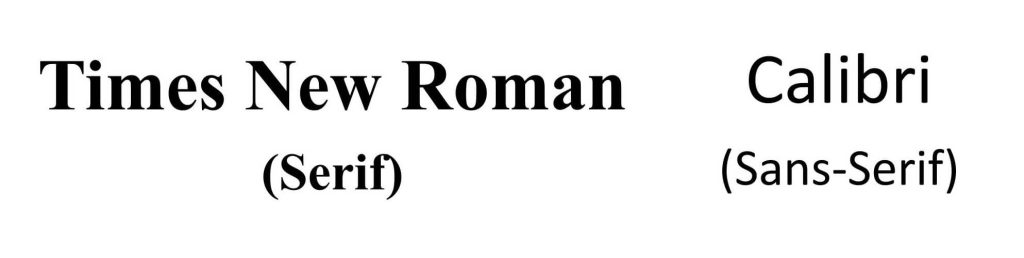
Some styles of font – called Serif – have little feet on the edge of the letters. Think of fonts like Times New Roman or Garamond.
Now, compare these to Sans-Serif – fonts without the feet – like Arial, Calibri, and this font that I’m using.
Sans-Serif fonts are generally easier to read, particularly if you have disabilities such as dyslexia because they have less visual clutter and clearer lines. If you can therefore limit your use of Serif fonts, and use Sans-Serif instead, you make your website more accessible.
5. Use Headings Correctly
Websites are made up of several headings, the most important being Heading 1, Heading 2, and Heading 3 (or H1, H2, H3). They’re used to structure a web page, break up and categorise blocks of text, and indicate the importance of page sections.
However, to be effective for SEO generally and accessibility specifically, they should be laid out and used correctly. That means using them in the correct order, the correct number of times, and in the correct context. If you’ve ever used heading text because “it looks right”, then you’re using it wrong.
I have a whole separate guide to using header tags that you can read.
DIY or Expert SEO Support?
Not sure how to do any of these, or don’t have the time? Just get in touch and we can have a chat about extra SEO support, whatever your budget.
Never Miss an SEO Tip
Like what you’ve read? Sign up to our newsletter for the latest blogs, tips, and updates.